Troubleshooting
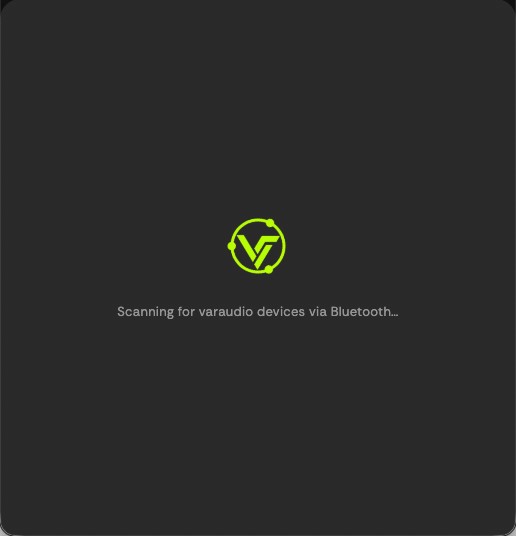
The app cannot find VarAudio over Bluetooth
Make sure it is powered and Bluetooth is on. On Android, Location must be on too. Move closer and try again. You can also connect manually from your phone’s Wi-Fi settings to the device’s own network.
“Configuration failed” after typing Wi-Fi
Check the network name and password. VarAudio uses 2.4 GHz Wi-Fi, so a 5 GHz-only network will not work.
Setup worked but the device is not listed
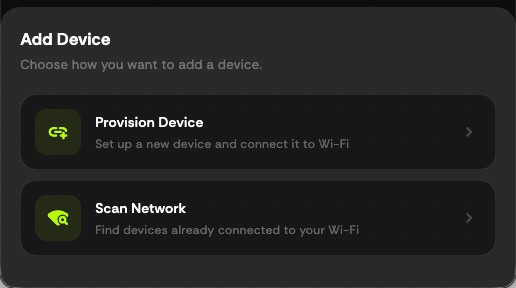
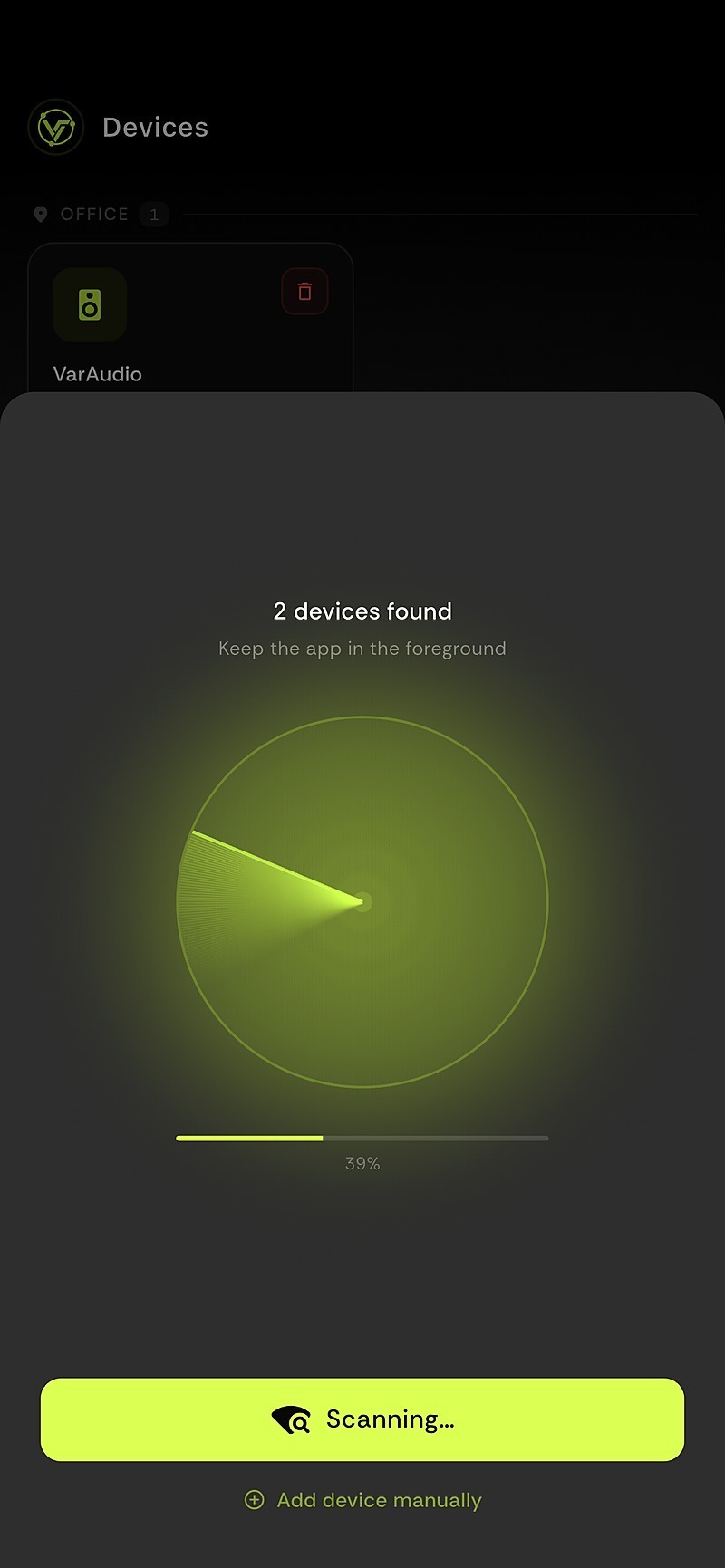
Run Start Scanning with your phone on the same Wi-Fi, or use Add device manually with its IP address.
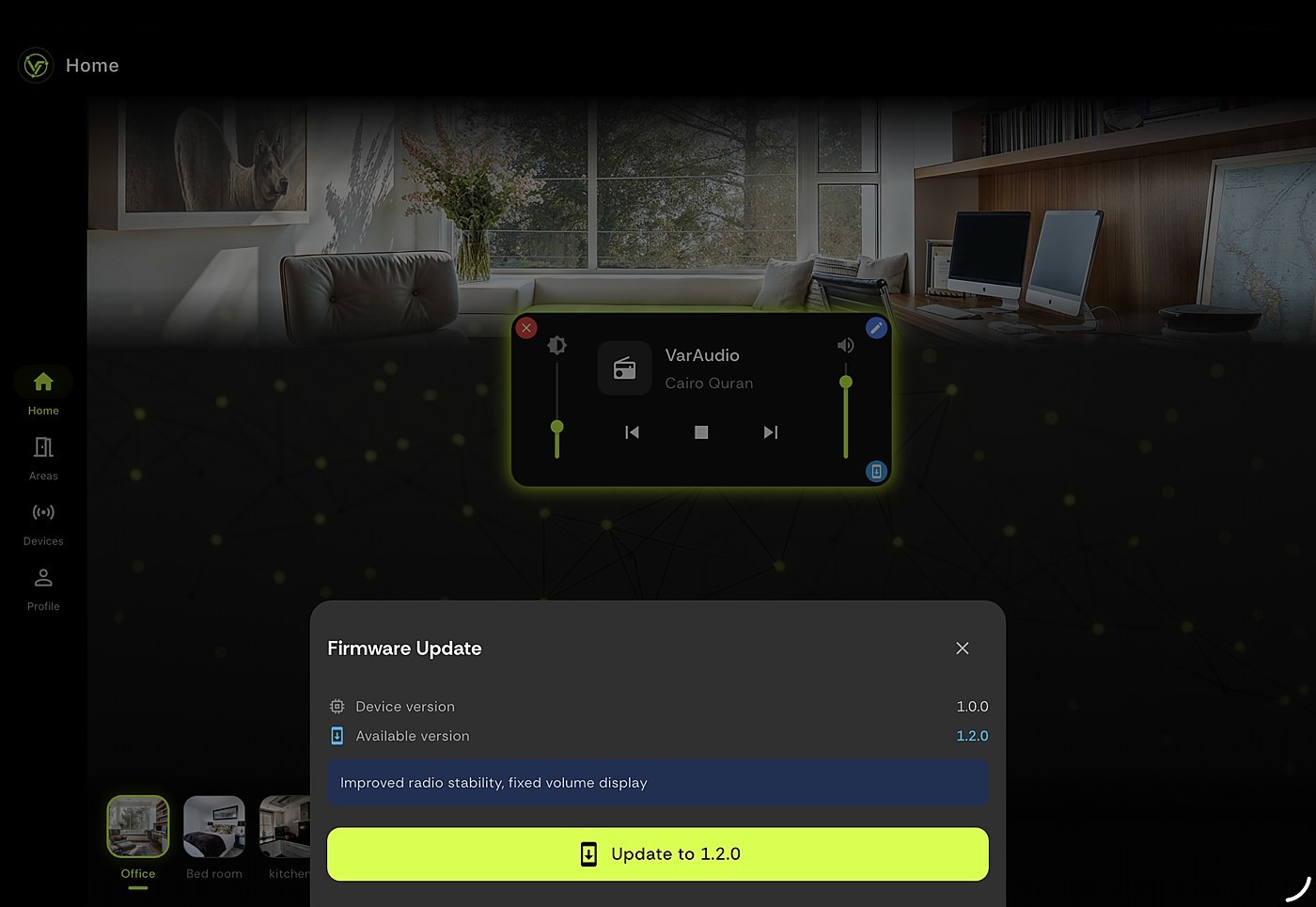
Lost connection while updating
Keep VarAudio powered and the app open, then try the update again. The device keeps what it received for a few minutes.
Need to change the Wi-Fi
Repeat step 4. Add the device again and enter the new network.
Still stuck? Write to support@varthings.com.